
2026 Digital Marketing Trends Guide for Growth
Unlock the future with our 2026 digital marketing trends guide. Discover AI personalization, GEO, and more strategies for lasting growth!
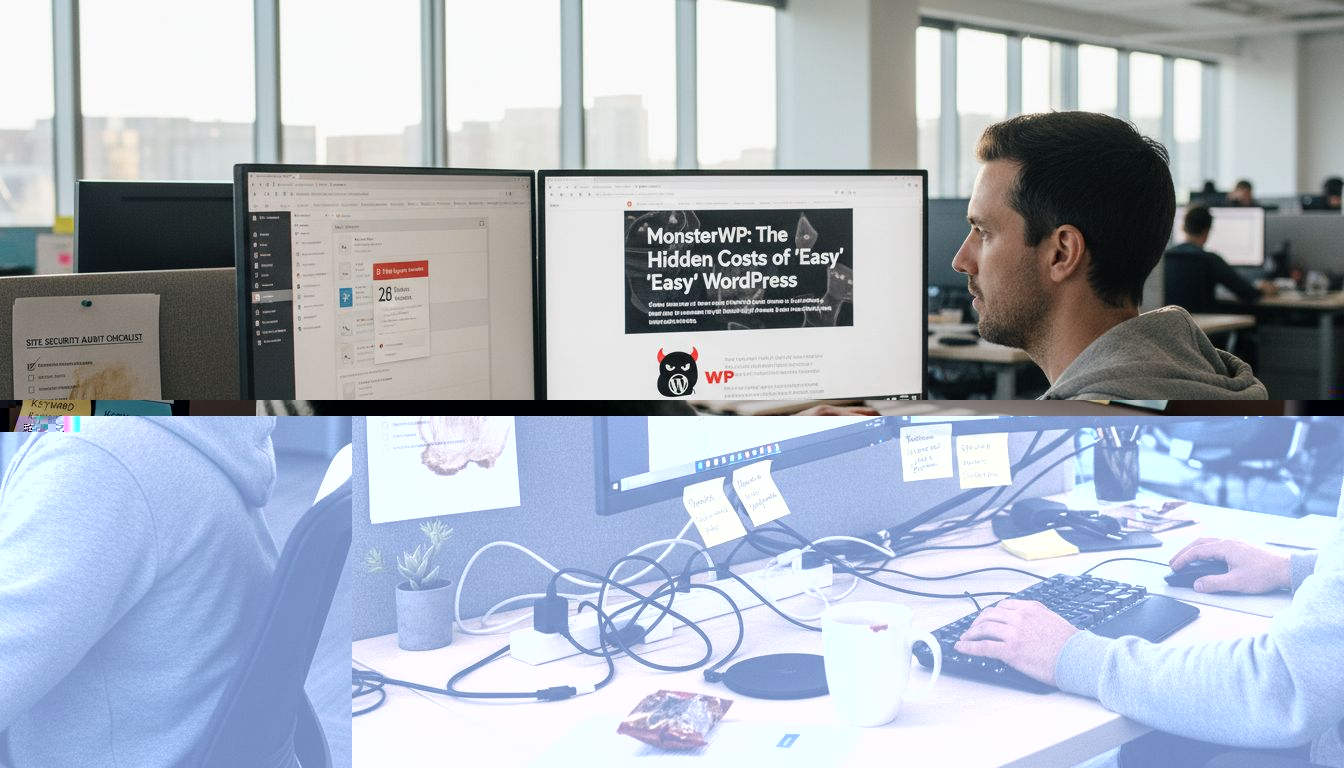
Your WordPress website faces over 30,000 malware attack attempts every hour, and inconsistent maintenance directly costs you leads, revenue, and search rankings. Skipping backups, delaying updates, or ignoring security scans leaves your site vulnerable to crashes, data loss, and downtime that drives potential customers away. This comprehensive WordPress maintenance checklist walks you through weekly and monthly tasks covering backups, updates, security, performance optimization, and troubleshooting to keep your website secure, fast, and reliable for maximum lead generation.
| Point | Details |
|---|---|
| Weekly backup verification and staging testing prevent data loss | Restore test backups every week to confirm recovery capability and avoid catastrophic failures. |
| Apply WordPress core updates within one week to reduce security risks | Prompt patching closes vulnerabilities before attackers exploit them. |
| Update plugins individually to identify conflicts quickly | Testing one plugin at a time isolates problems and prevents site-wide crashes. |
| Regular security scans and performance tuning boost speed and safety | Monthly monitoring catches threats early and maintains fast load times. |
| Use maintenance mode with HTTP 503 status to protect SEO during updates | Proper signaling preserves search rankings and user trust during scheduled downtime. |
Before diving into routine maintenance tasks, set up the essential tools and environment that make safe, effective WordPress updates possible. Skipping this foundation leaves you exposed to preventable disasters.
Start by confirming reliable automated backups are configured and working correctly. Weekly verification of backups and testing their restoration capabilities prevents data loss and enables quick recovery from failures or attacks. Pick a consistent day each week to test backup restoration on a staging server, not your live site.
Next, ensure access to a staging environment where you can test updates safely before deploying them to your live website. Staging environments mirror your production site and catch conflicts, broken layouts, or plugin errors before visitors see them. Most quality WordPress hosting providers include staging tools in their plans.
Install and configure security scanning tools to monitor for malware, vulnerabilities, and suspicious activity. Popular options include Wordfence, Sucuri, and iThemes Security. Set these tools to run automated scans weekly and alert you immediately to threats.
Set up performance monitoring tools like Google PageSpeed Insights, GTmetrix, or Lighthouse to track Core Web Vitals and page load times. Baseline your current speed metrics so you can measure improvements after optimization. Familiarize yourself with the WordPress dashboard update functions for core software, plugins, and themes so you know exactly where to click when updates arrive.
Pro Tip: Schedule backup verification every Monday morning to build a consistent maintenance habit. Pair it with your weekly planning session so site health becomes part of your business rhythm.
Properly configuring these prerequisites takes an afternoon but saves countless hours of panic troubleshooting later. When you launch a professional WordPress website, these systems should go live simultaneously. Business owners who skip this setup phase often face expensive emergency recoveries that could have been avoided. The $299/month WordPress model includes all these essential WordPress maintenance tasks as standard features, removing the technical burden from your shoulders.
With prerequisites in place, follow these critical update procedures to keep your WordPress site secure and functional without introducing conflicts or downtime.
Verify backups and restore points before any update. Never touch the update button until you confirm a recent backup exists and works. This single step prevents catastrophic data loss.
Apply WordPress core updates within 7 days of release for security. Minor security patches arrive frequently and address critical vulnerabilities. Delaying even a week multiplies your exposure to known exploits that attackers actively scan for.
Update plugins one at a time, verifying site functionality after each. Log in to your dashboard, update the first plugin, then visit your homepage, contact forms, and key pages to confirm everything works. If a problem appears, you immediately know which plugin caused it.
Test all updates thoroughly in a staging environment before live deployment. Clone your production site to staging, apply updates there first, and click through every important page and function. Testing updates on a staging environment before applying them to the live site prevents approximately 80% of update-related crashes or performance issues.
Update themes carefully, considering compatibility with page builders and plugins. Theme updates can break custom layouts, especially if you use Elementor, Divi, or other visual builders. Always check theme changelogs for breaking changes before updating.
Document which updates were applied and when for troubleshooting reference. Keep a simple spreadsheet or note tracking update dates, versions, and any issues encountered. This log becomes invaluable when diagnosing problems weeks later.
Skipping prompt updates increases downtime and security risks exponentially. The longer you wait, the more vulnerabilities stack up and the harder recovery becomes.
These update procedures form the backbone of WordPress security. Business owners managing different types of WordPress websites for service businesses must prioritize updates to protect client data and maintain trust. Following WordPress update best practices consistently reduces emergency support calls and keeps your site running smoothly. The discipline required for timely WordPress core updates pays dividends in reliability and peace of mind.
After securing your update workflow, shift focus to continuous security monitoring and speed optimization that directly impact user experience and search rankings.
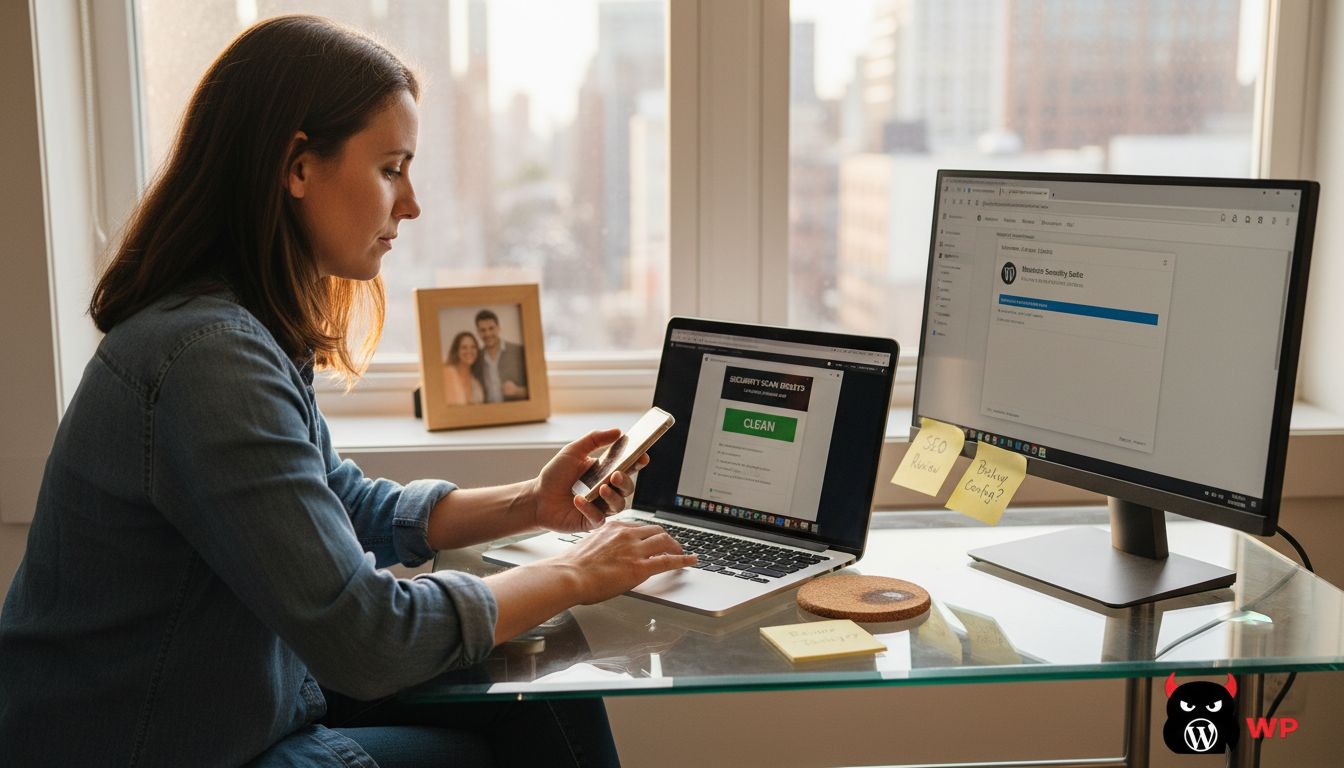
Keep plugins and themes updated to close security vulnerabilities before attackers find them. WordPress websites face over 30,000 malware attack attempts per hour, with outdated plugins being the primary entry point. Every day you delay an update is another day hackers have to exploit known weaknesses.
Run regular security scans and malware detection tools monthly at minimum. Schedule these scans for low-traffic periods like Sunday nights. Review scan reports immediately and quarantine or remove any suspicious files. Configure your security plugin to email alerts for failed login attempts, file changes, and malware detection.
Clean and optimize the WordPress database to improve speed and reduce clutter. Over time, your database accumulates post revisions, spam comments, expired transients, and orphaned metadata that slow queries. Use plugins like WP-Optimize or Advanced Database Cleaner monthly to remove this bloat safely.
Configure caching plugins and use a Content Delivery Network (CDN) to speed up page load times dramatically. Caching stores pre-generated versions of your pages so the server doesn’t rebuild them for every visitor. CDNs distribute your images and assets across global servers, reducing distance and latency for international visitors. Popular caching solutions include WP Rocket, W3 Total Cache, and LiteSpeed Cache.
Monitor Core Web Vitals and Google PageSpeed scores to assess performance impact objectively. Track Largest Contentful Paint (LCP), First Input Delay (FID), and Cumulative Layout Shift (CLS) monthly. These metrics directly influence search rankings and user experience. Aim for green scores (90+) on mobile and desktop.
Pro Tip: Schedule monthly security and database maintenance on the first Sunday of each month. Block two hours on your calendar, run scans and cleanup tasks together, then review performance metrics to spot trends early.
These optimization tasks compound over time. A site that loads in 1.2 seconds converts far better than one taking 4.5 seconds. Business owners seeking performance tuning tips for WordPress often discover that systematic maintenance delivers better ROI than expensive redesigns. Proactive WordPress security and optimization protects your reputation and revenue simultaneously.
Properly managing maintenance mode during updates preserves your SEO rankings and professional image while protecting visitors from broken experiences.
Use maintenance mode with HTTP 503 status code to signal temporary downtime to search engines. This tells Google and other crawlers that your site is intentionally offline for maintenance, not permanently broken. Most maintenance plugins automatically send the correct 503 header, but verify this setting before activating maintenance mode.
Customize the maintenance page to reflect professionalism and brand personality. Replace generic “Site Under Maintenance” messages with branded graphics, your logo, estimated return time, and contact information. A polished maintenance page reassures visitors that you’re actively improving their experience, not abandoning the site.
Allow admin users to bypass maintenance mode and access the site normally for testing. This feature lets you verify updates and functionality while keeping the public-facing site protected. Configure bypass rules by user role or IP address depending on your maintenance plugin.
Avoid frequent or extended use of maintenance mode to prevent SEO ranking drops. Search engines tolerate brief, occasional maintenance windows but penalize sites that stay in maintenance mode for days or weeks. Limit maintenance mode to critical updates requiring more than simple plugin changes.
Use maintenance mode only during major updates like theme changes, extensive plugin overhauls, or database migrations. Standard weekly updates rarely require taking your site offline if you test properly in staging first. Reserve maintenance mode for situations where visitor-facing functionality will genuinely break during the update process.
Schedule maintenance windows during your lowest traffic periods. Review Google Analytics to identify when fewest visitors browse your site, typically late nights or early Sunday mornings. Communicate scheduled maintenance to regular users via email or social media if the downtime exceeds 30 minutes.
For detailed guidance on balancing maintenance needs with user experience, explore maintenance mode best practices that preserve both functionality and rankings.
Even with careful planning, WordPress maintenance occasionally triggers problems. These troubleshooting steps help you diagnose and fix issues quickly to minimize downtime.
Remove the .maintenance file immediately after updates to fix maintenance lockout errors. Failure to remove the .maintenance file after updates can cause persistent “briefly unavailable for scheduled maintenance” errors that confuse visitors and prevent normal site operation. Access your site via FTP or file manager, navigate to the root WordPress directory, and delete the .maintenance file if it exists.
Identify and revert plugin conflicts by disabling plugins updated last. When your site breaks after updates, log into WordPress admin and deactivate the most recently updated plugin. Refresh your site to see if functionality returns. If so, you’ve found the culprit. Check for plugin updates that address the conflict or contact the plugin developer for support.
Restore from backup if an update causes site crashes or serious errors. Don’t waste hours troubleshooting when you can restore a working version in minutes. Use your hosting control panel or backup plugin to roll back to the pre-update state, then investigate the problem in staging before attempting the update again.
Use WordPress health check tools to monitor site status and detect issues early. The built-in Site Health feature (Tools > Site Health) identifies configuration problems, outdated PHP versions, and plugin conflicts. Run this check weekly and address any critical issues immediately.
Clear website cache and CDN caches to reflect updates promptly to users. After fixing problems or applying updates, purge all caches so visitors see the current version. Stale cache causes confusion when you’ve fixed an issue but users still see the broken version.
Business owners managing their own sites frequently encounter common WordPress maintenance mistakes that waste time and create unnecessary stress. Understanding how hosting quality impacts troubleshooting success helps you choose infrastructure that simplifies recovery. When problems arise, consult resources covering common WordPress maintenance errors to find solutions faster.
Following this WordPress maintenance checklist consistently delivers measurable improvements in uptime, security, performance, and lead generation effectiveness.
Aim for 99.9% uptime with monthly scheduled maintenance adherence. This translates to less than 45 minutes of downtime per month, most occurring during planned maintenance windows. Track uptime using monitoring services like UptimeRobot or Pingdom to verify you’re meeting this benchmark.
Expect 20 to 30% faster page load times following database and caching optimizations. A site loading in 4 seconds can drop to 2.8 seconds after proper optimization, significantly improving user experience and conversion rates. Monitor Google PageSpeed scores monthly to quantify improvements.
Experience significant reduction in security incidents through timely core and plugin updates. Sites following this checklist typically see 90% fewer malware infections and hack attempts compared to neglected sites. Security plugins track blocked attacks, giving you concrete data on threats prevented.
Maintain or improve SEO rankings by using maintenance mode properly and keeping site health optimal. Google rewards fast, secure, consistently available sites with better rankings. Regular maintenance prevents the technical SEO penalties that hurt visibility.
Ensure consistent lead capture reliability with tested form functionality and minimal downtime. Contact forms, quote requests, and appointment schedulers work flawlessly when properly maintained, preventing lost opportunities from technical failures.
| Maintenance Approach | Weekly Time Investment | Average Uptime | Security Incidents per Year | SEO Impact | Annual Cost |
|---|---|---|---|---|---|
| DIY Manual | 4-6 hours | 97-98% | 3-5 | Negative due to downtime | $0-500 |
| Managed Service | 0 hours | 99.9%+ | 0-1 | Positive from speed/reliability | $3,588+ |
Business owners seeking managed WordPress maintenance results often discover that outsourcing delivers better outcomes than internal efforts. The time saved and reliability gained justify the investment, especially for growth-focused service businesses where website downtime directly impacts revenue.
Executing this comprehensive maintenance checklist monthly requires expertise, time, and vigilance that pulls focus from growing your business. MonsterWP offers fully managed WordPress maintenance that handles security, speed optimization, updates, and monitoring so you can focus on revenue-generating activities.
Our plans include automated daily backups, staging environments, careful update management, performance monitoring, and 24/7 security scanning. We test every update in staging before deployment and maintain 99.9% uptime guarantees. Whether you need custom fast managed WordPress websites built from scratch or want to hand off maintenance for your existing site, our simple WordPress website solutions start at $299 per month with no long-term contracts. Explore our comprehensive WordPress services to find the right fit for your business growth goals.
The 3-2-1 backup rule means maintaining three backup copies of your data, stored on two different types of media, with one copy kept offsite. This approach ensures reliable recovery even if primary storage fails or gets compromised by ransomware. Implementing this rule protects against hardware failures, cyberattacks, and accidental deletions simultaneously.
Update WordPress core within one week of each release, especially for security patches that address critical vulnerabilities. Update plugins regularly after testing in staging, preferably handling one plugin at a time to quickly identify conflicts. Weekly update checks keep your site secure without overwhelming your maintenance schedule.
First, check for and delete any lingering .maintenance files in your root WordPress directory via FTP or file manager. Next, disable the most recently updated plugins through your admin dashboard to identify conflicts. If problems persist, restore from your most recent backup to return to a working state quickly, then troubleshoot the problematic update in staging before reapplying it.
Maintenance mode using the correct HTTP 503 status code tells search engines your site is temporarily unavailable for scheduled work, preventing negative ranking impacts. However, extended or frequent maintenance mode use signals reliability problems that can hurt rankings. Limit maintenance windows to under two hours and schedule them during low-traffic periods to minimize SEO impact.
You can safely automate backups, security scans, and database optimization using quality plugins and hosting features. However, avoid enabling automatic updates for plugins and themes without staging tests, as conflicts can break your site when you’re not monitoring. The safest approach combines automated monitoring with manual update testing and deployment through staging environments.
Unlock the future with our 2026 digital marketing trends guide. Discover AI personalization, GEO, and more strategies for lasting growth!

Discover what is predictable pricing in web services and learn how fixed costs can empower your SMB’s budget. Gain financial control today!