
Top 3 GoDaddy.com Hosting Alternatives 2026
Explore the top 3 GoDaddy.com alternatives for reliable hosting solutions. Compare to make an informed decision for your business needs.
TL;DR:
- Securing a WordPress site requires layered defenses, including proper configuration and ongoing vigilance.
- Common vulnerabilities stem from outdated plugins, weak passwords, and misconfigured file permissions.
- Manual hardening and smart hosting practices are essential as plugins alone cannot ensure complete security.
A hacked website doesn’t just mean downtime. It means lost revenue, damaged customer trust, potential legal exposure, and hours of painful recovery work. For small and mid-sized service businesses, a compromised WordPress site can derail operations fast. Yet most owners treat security as an afterthought, slapping on a plugin and calling it done. That approach is broken. Real WordPress security requires layered defenses, smart configuration, and ongoing vigilance. This article walks you through the practical, evidence-backed steps that actually protect your site and your business.
| Point | Details |
|---|---|
| Security plugins are not enough | Complement plugins with manual hardening and regular audits for full protection. |
| Least-privilege access matters | Restrict user roles and remove unnecessary accounts to limit attacks. |
| Keep configuration secure | Correct file permissions and API restrictions block serious vulnerabilities. |
| Stay proactive with updates | Update plugins, themes, and security keys regularly to stay ahead of threats. |
WordPress powers over 40% of the web, which makes it the biggest target on the internet. Attackers don’t need to be sophisticated. Most use automated bots that scan thousands of sites per hour, hunting for known weaknesses. Understanding what they’re looking for is the first step toward shutting them out.
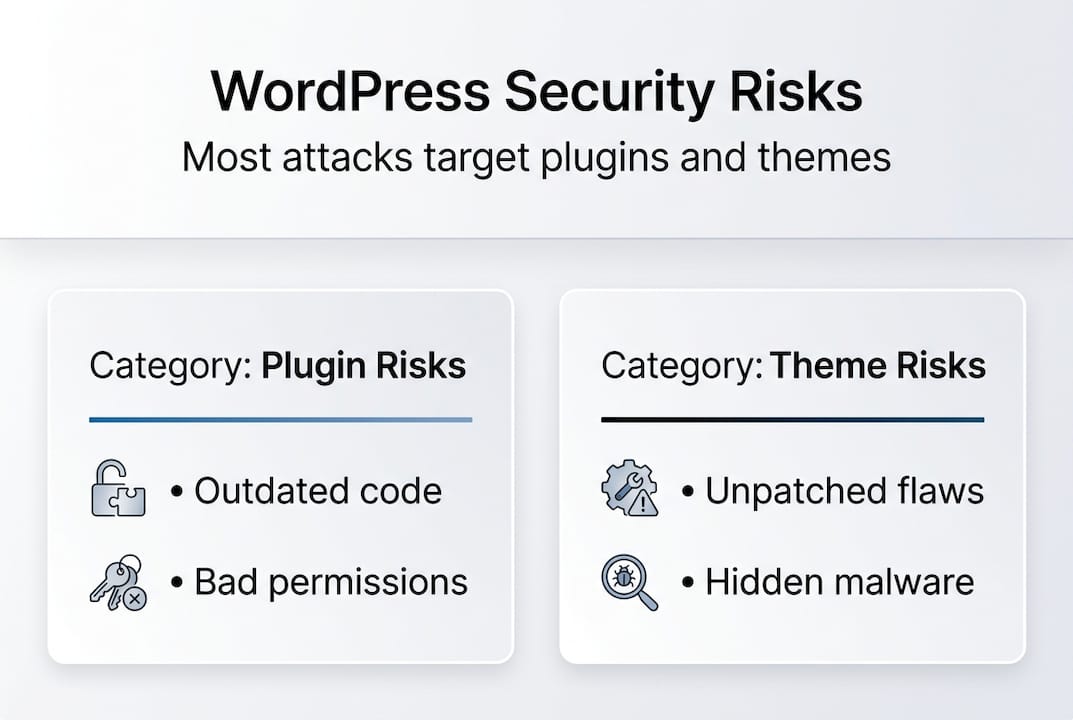
The numbers are stark. A staggering 96% of vulnerabilities are tied to plugins or themes, not WordPress core itself. That means every plugin you install is a potential entry point. Outdated plugins, abandoned themes, and poorly coded add-ons are the low-hanging fruit attackers grab first.
Beyond plugins, two attack types are rising fast. SQL injection and XML-RPC rank among the top OWASP risks for WordPress sites. SQL injection lets attackers manipulate your database directly, stealing or corrupting data. XML-RPC, a legacy remote access feature, is frequently abused to launch brute-force login attempts at scale. Both can devastate a business site in minutes.
Review our WordPress attack checklist to see how these threats play out in real attack scenarios. You’ll also want to understand content sniffing risks, a browser-level vulnerability that attackers exploit when HTTP security headers are missing.
Here’s a quick breakdown of the most common risks and their real-world business impact:
| Threat | How it works | Business consequence |
|---|---|---|
| Outdated plugins/themes | Known exploits go unpatched | Data breach, site defacement |
| Weak passwords | Brute-force bots guess credentials | Full admin takeover |
| SQL injection | Malicious database queries | Customer data theft |
| XML-RPC abuse | Amplified login attacks | Account lockouts, spam |
| Missing HTTP headers | Browser exploits content | Malware injection, phishing |
Key vulnerabilities to watch:
Security plugins can catch some of these issues, but they can’t fix bad configuration or a vulnerable plugin’s underlying code. That’s why a defense-in-depth approach matters. You need multiple layers working together.
Now that you know the main threats, it’s time to strengthen your site’s foundation. These aren’t glamorous steps, but they’re the ones that stop most attacks cold.
Start with HTTPS. Every page on your site should load over a secure connection. Implement HTTPS everywhere and configure HTTP security headers to protect against browser-based attacks. Headers like Content Security Policy (CSP), HTTP Strict Transport Security (HSTS), and X-Frame-Options tell browsers how to handle your content safely. Skipping them is like leaving windows open while locking the front door.
User roles are another overlooked weak spot. WordPress has five built-in roles: Administrator, Editor, Author, Contributor, and Subscriber. Most small business sites give too many people Administrator access. That’s a serious risk. Apply the least-privilege principle: give users only the access they need to do their job. Review your user list monthly and remove anyone who no longer needs access.
Here’s a comparison of what each role can do:
| Role | Can install plugins | Can edit others’ posts | Can publish |
|---|---|---|---|
| Administrator | Yes | Yes | Yes |
| Editor | No | Yes | Yes |
| Author | No | No (own only) | Yes |
| Contributor | No | No | No |
| Subscriber | No | No | No |
Foundational steps every site needs:
Choosing the right hosting for WordPress security also matters here. Hosts that enforce server-level firewalls and automatic malware scanning give you a stronger baseline before you even touch a plugin. Review security best practices for additional configuration guidance.
Pro Tip: Before deploying new HTTP security headers, test your site using a free tool like securityheaders.com. Some CSP rules can block legitimate scripts. Test in a staging environment first to avoid breaking your live site.
Once basic defenses are in place, additional configuration hardening offers deeper protection. This is where most business owners stop short, and where attackers find their opening.
File permissions control who can read, write, or execute files on your server. Incorrect permissions are an open invitation. Correct permissions prevent unauthorized file edits and are one of the most effective hardening steps you can take. Use these as your standard:
That last step is critical. The built-in theme and plugin editor in WordPress lets anyone with admin access modify PHP files directly. If an attacker gets into your admin panel, they can inject malicious code in seconds. Disabling that editor removes the shortcut.
Refer to our maintenance and permissions guide for a step-by-step walkthrough of file permission audits. If you’re building from scratch, our guide on launching a secure WordPress site covers these settings from day one.
“Incorrect permissions leave the door wide open to attackers. Never assume your host gets them right by default.”
Pro Tip: Always back up your wp-config.php and .htaccess files before making permission changes. One wrong setting can take your site offline. Keep a copy in a secure, offline location.
Hardening your configuration takes less than an hour when you know what to change. The protection it delivers lasts indefinitely.
Configuration is only half the battle. Attackers go for the underlying database and APIs as their next step. These are the targets that cause the most damage when breached.
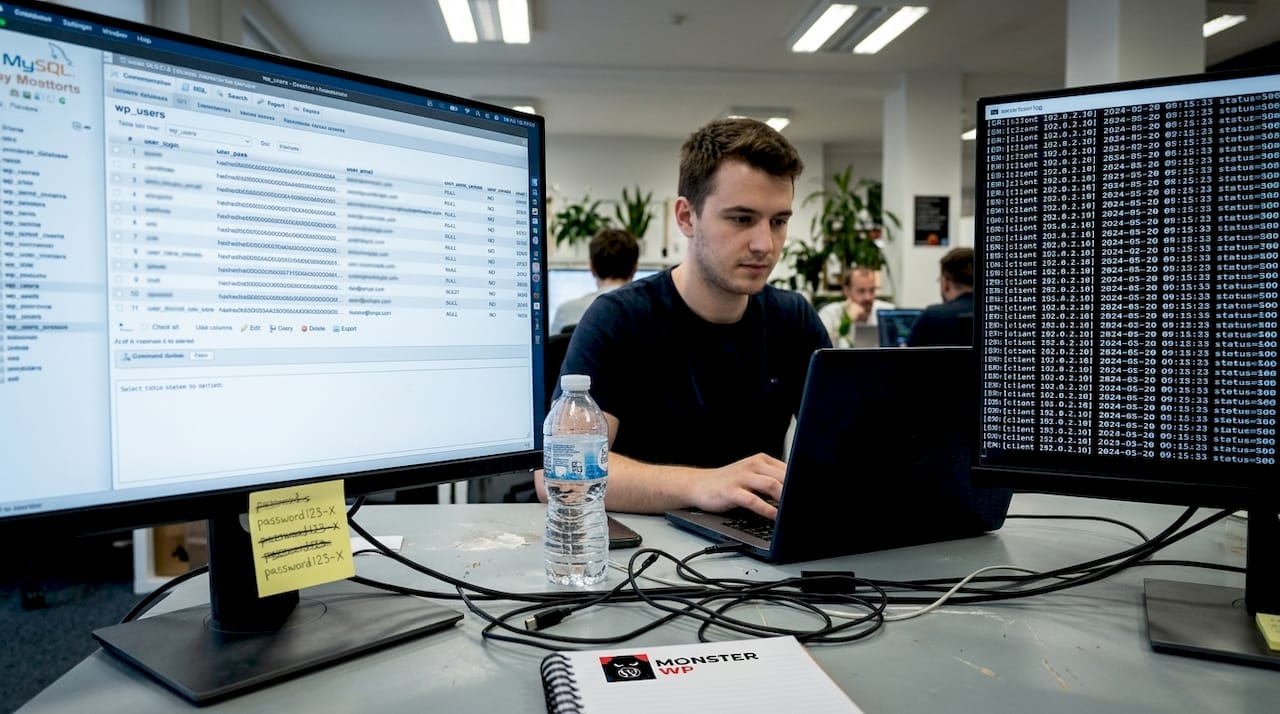
The WordPress database stores everything: your content, user credentials, settings, and customer data. By default, every table starts with the prefix “wp_”. Attackers know this. Changing the database prefix, updating security keys, and restricting APIs are proven steps that reduce real-world breach risk significantly.
Change the table prefix during installation. If your site is already live, you can change it with a plugin, but always take a full database backup first. A unique prefix like “xk9m_” makes automated SQL injection attacks far less effective.
Steps to lock down your database and APIs:
Common API and database mistakes business owners make:
SQL injection remains a leading cause of breaches for small and mid-sized businesses. It’s not a new threat, but it’s still devastatingly effective against unprotected sites. Pair these database steps with the long-term site maintenance practices we recommend to keep protections current as your site evolves.
Here’s the uncomfortable truth most WordPress tutorials won’t tell you: security plugins create a false sense of safety. We see it constantly. A business owner installs Wordfence or Sucuri, sees the green checkmarks, and assumes their site is protected. It isn’t. Not fully.
Plugins scan for known malware signatures and block common attack patterns. That’s genuinely useful. But plugins alone are insufficient; hardening is necessary because plugins can’t fix misconfigured file permissions, can’t move your wp-config.php, and can’t enforce user role discipline. They also can’t protect you from a vulnerability in another plugin they don’t know about yet.
Shared hosting makes this worse. On shared servers, your site lives alongside dozens or hundreds of others. A breach on a neighboring site can sometimes affect yours. Shared environments also limit which server-level security configurations you can apply. Understanding hosting pitfalls is essential before you assume your host has you covered. The right hosting for small business sites changes what’s possible at the server level.
“True security is a layered approach. A plugin is just one component, not a complete solution.”
Manual hardening, smart hosting, disciplined user management, and regular audits work together. No single tool replaces that combination. The businesses that get hacked aren’t usually the ones with no security plugin. They’re the ones with a plugin and nothing else.
Pro Tip: Test all plugin updates in a staging environment before pushing them live. Plugin conflicts can silently disable security rules without triggering any alerts.
If these steps feel like a lot to manage on top of running your business, you’re not alone. Security configuration isn’t a one-time task. Threats evolve, plugins change, and misconfigurations creep in over time.
At MonsterWP, we handle all of this for you. Every custom WordPress security setup we build includes hardened configurations, proper file permissions, HTTPS enforcement, and ongoing monitoring from day one. Our WordPress management support keeps your security layers current as your site grows. No bloated retainers. No guesswork. Just a secure, high-performance site that works while you focus on your business. Starting at $299 per month, it’s the smarter way to protect your digital revenue engine.
Enable HTTPS, use strong passwords, and remove unused plugins and themes immediately after launch. These three steps close the most common entry points before attackers can find them.
Yes. Plugins alone are insufficient; manual hardening protects file permissions, configuration files, and server-level settings that no plugin can reach. Both layers working together give you real protection.
Keeping outdated plugins and bad permissions are the most frequent mistakes, along with giving too many users Administrator access and never auditing who actually needs it.
Rotate security keys quarterly and review your user access list monthly. Regular rotation limits the damage if credentials are ever exposed without your knowledge.
Explore the top 3 GoDaddy.com alternatives for reliable hosting solutions. Compare to make an informed decision for your business needs.

Unlock the power of content optimization strategies that drive results. Discover how to enhance rankings, leads, and revenue effectively!